Introduction
If you integrate with ServiceLink 360, you can now post a job to the “Job Board” where resources can request to take a service on a job. This eliminates the need to send resources messages to see who can cover a job.
Setup
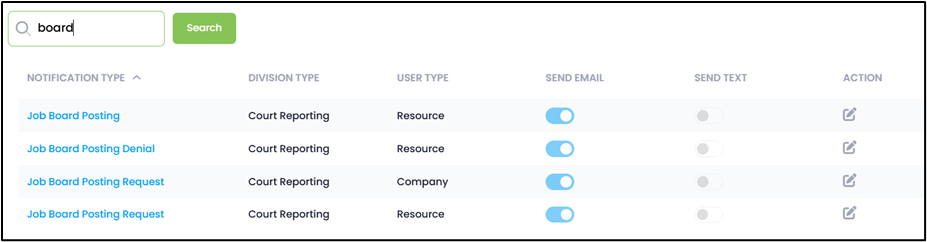
Before you can use this feature, you will need to turn on the notifications for the Job Board in ServiceLink. In ServiceLink, go to Settings >> Divisions >> select a division >> Notification Settings tab. Search on the word “board” to find the notifications. Turn on the notifications and edit them as desired. You will need to enter the Reply To Email Address or To Email Address in each one before they can be sent.
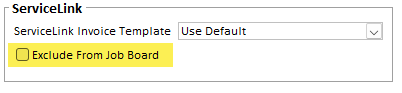
If you want to exclude a resource from getting access to the job board, check Exclude From Job Board on the Miscellaneous tab on the Resource maintenance window.
Posting a Job to the Board
On the Resource Assignments window, when you select an unassigned service for a job that is for today or in the future, you will see a Post to Board button.
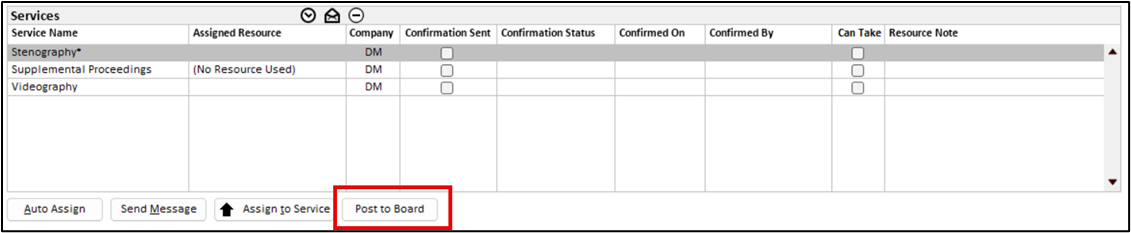
Find the resources that you want to make the service available to, then click on the Post to Board button. The following message will display:
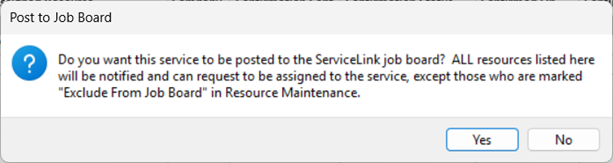
Click on Yes to continue. The service will show “Posted on Job Board” for the Assigned Resource.
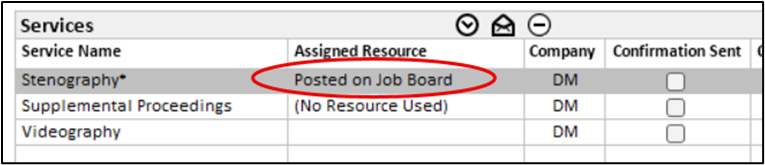
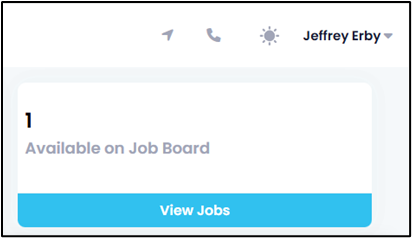
Once saved and synched to ServiceLink, ServiceLink will send the “Job Board Posting” notification to the selected resources. They will then see the Job Board tile on their dashboard.
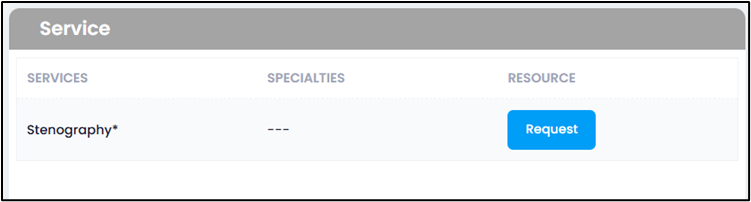
When viewing the job, they will see a Request button next to the service. Clicking on it will show that they have requested it and send you the “Job Board Posting Request” notification.
Processing Jobs on the Board
You can then do any of the following:
- Add other resources to the job board by finding different resources and clicking on the Post to Board button again.
- Remove the job from the job board by clicking on the remove icon button above the list.
- Assign a resource to the service.
If you assign a resource to the service, all other resources will receive the “Job Board Posting Denial” notification. You should still send a confirmation to the assigned resource to inform them of their acceptance on the job.
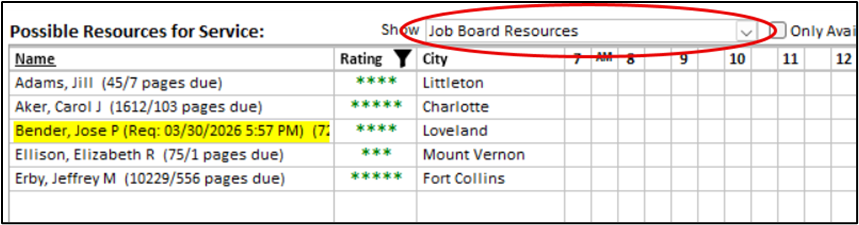
When viewing a service that is on the job board, it will also select the “Job Board Resources” option in the Show dropdown list above the resource list. This shows you which resources can view the job board for that service. Any resources that requested to take the job will be highlighted and it will show when they requested it next to their name.
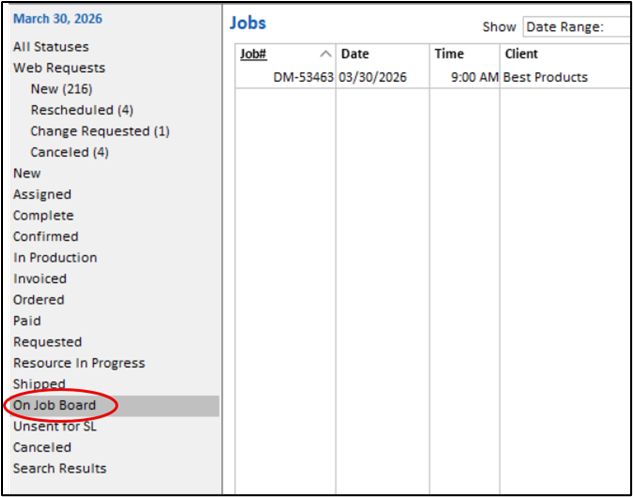
You can find all jobs for today or in the future that have services on the job board by selecting the On Job Board option when viewing the job list:
Was this article helpful?
That’s Great!
Thank you for your feedback
Sorry! We couldn't be helpful
Thank you for your feedback
Feedback sent
We appreciate your effort and will try to fix the article